Scheduler, Pipelines & Jobs — Automation Guide
Schedule limit: 2 schedules (Community edition)
Faraday provides three complementary automation systems accessible from the Automation section in the web interface:
| System | Trigger | Purpose |
|---|---|---|
| Scheduler | Time-driven (cron) | Automatically run agent executors on a recurring schedule |
| Pipelines & Jobs | Event-driven / manual | Apply bulk transformations to vulnerabilities and assets based on rules |
| Agents | On-demand / scheduled | Execute security tools and import results into workspaces |
Scheduler
Overview
The Scheduler enables recurring, unattended execution of agent executors using standard POSIX cron expressions. Each schedule:
- Targets a specific executor on a registered agent
- Runs against one or more workspaces
- Supports severity filters and tagging for imported data
- Computes the next run time using the
croniterlibrary with timezone awareness
Schedules are managed in the Faraday server and trigger executions by sending RUN commands to connected agents. Until now, only agents or cloud agents can be calendarized for future runs. More Faraday features will be added in the future.
Creating a Schedule (UI)
- Navigate to Automation > Scheduler in the left sidebar
- Click "Create Schedule"
-
Fill in the schedule form:
Field Required Description Description Yes Human-readable name for the schedule Interval Pattern Yes Predefined interval or a custom POSIX cron expression (see CRON Format Reference Agent Selection Yes Select the agent to calendarize Tool Selection Yes Select the tool within the agent to run Parameters Varies see step 4 Workspace(s) Yes Target workspace(s) for results Tags No See step 5 -
Configure Parameters depending on the tool within the agent selected:
Option Required Description Min/Max Severity No Min and Max severity filter results Parameters Varies Depending on the selected tool, a list of parameters needed to run it. -
Configure Tags: Click edit for adding tags to vulnerabilities, services or assets results. Then click save.
Option Required Description Add Tag(s) to Asset(s) No Tags to apply to imported vulnerabilities Add Tag(s) to Service(s) No Tags to apply to imported services Add Tag(s) to Vulnerabilities(s) No Tags to apply to imported assets -
Click Accept to save
Cron Format Reference
Schedules use the standard 5-field POSIX cron format:
┌────────────── minute (0–59)
│ ┌──────────── hour (0–23)
│ │ ┌────────── day of month (1–31)
│ │ │ ┌──────── month (1–12)
│ │ │ │ ┌────── day of week (0–6, 0=Sunday)
│ │ │ │ │
* * * * *
Common expressions:
| Expression | Meaning |
|---|---|
0 2 * * * |
Daily at 2:00 AM |
0 */6 * * * |
Every 6 hours |
30 1 * * 1 |
Mondays at 1:30 AM |
0 0 1 * * |
First day of each month at midnight |
0 9 * * 1-5 |
Weekdays at 9:00 AM |
*/15 * * * * |
Every 15 minutes |
0 0 * * 0 |
Sundays at midnight |
Supported syntax:
- Ranges: 1-5 (Monday through Friday)
- Lists: 0,15,30,45 (at minutes 0, 15, 30, 45)
- Steps: */10 (every 10 units)
- Wildcards: * (every unit)
Activating and deactivating Scheduler
After the creation, a scheduler appears in the scheduler table and is activated by default. The scheduler will execute the associated agent with the configurated cadence, agent executions can be reviewed in the Run Status Log tab.
The created schedulers can be deactivated using the slider in the ACTIVE column.
Running the agent associated with the scheduler manually
If a scheduler is active, it can be forced to run manually using the play button in the TRIGGER NOW column in the scheduler table.
Community Edition: Cron + faraday-cli
The web-based Scheduler UI with the "Run" button is available in Corporate/Pro editions. Community edition users can achieve the same result using system cron and faraday-cli.
Pipelines & Jobs
Concepts
Pipelines and Jobs provide rule-based automation for bulk vulnerability and asset management. They operate on data that is already in Faraday workspaces (unlike the Scheduler, which brings new data in).
Hierarchy:
Pipeline (targets a workspace)
  └── Job 1 (sequential execution)
        ├── Rules (conditions to filter objects)
        └── Tasks (actions to perform on matching objects)
  └── Job 2
        ├── Rules
        └── Tasks
- Pipeline — A container that targets a specific workspace and groups one or more Jobs
- Job — A rule-action unit that filters objects by conditions and applies transformations
- Rule (Condition) — A filter expression (attribute + operator + value)
- Task (Action) — An atomic operation (update, append, or delete)
Creating a Pipeline
- Navigate to Automation > Pipelines in the Faraday web interface
- Click on + Create New Pipeline"
- Input a Name for the pipeline.
- Add one or more Jobs to the pipeline, selecting one of the available jobs in the jobs library or creating a new one (see Creating a Job).
- Select a workspace target for the pipeline.
- Click Save
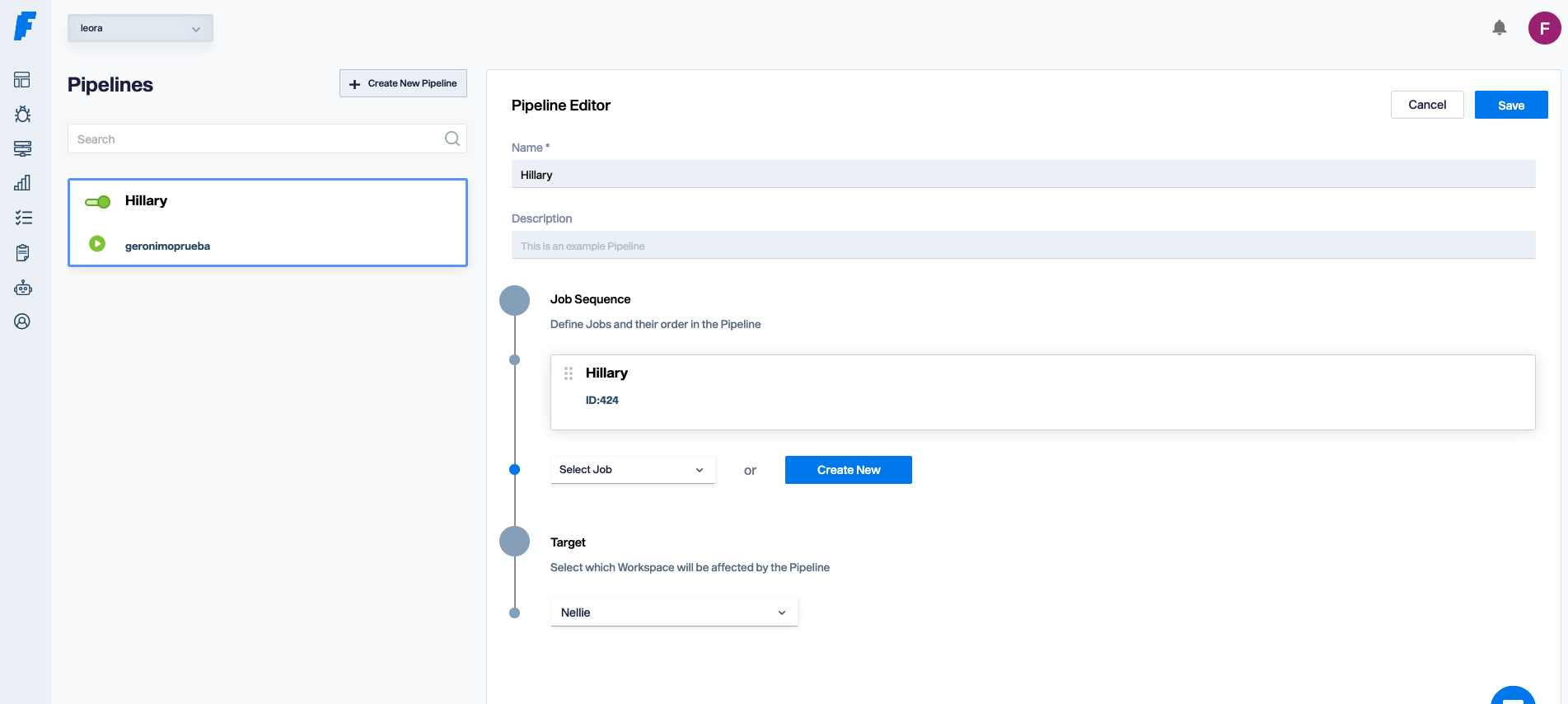
Creating a Job
Jobs can be create by scratch from the Automation menu, in the Jobs sub section. The same interface can be accesed when creating a pipeline using the Create New blue button in the Job Sequence.
- Navigate to Automation > Jobs in the Faraday web interface
- Click on + Create New Job"
- Input a Name for the job.
- Salect any Vulnerability or Asset depending if you need a rule based on a vulnerability or based on an asset.
-
Create one or more rules (conditions). Rules filter wich objects (vulnerabilities or assets) are affected by the job's tasks. Each rule specifies one or more conditions. Two or more conditions within a rule are combined with the AND logic operator. Each condition specifies:
Component Description Examples Attribute vulnerabity or asset attribute Name, CVE, Confirmed, Description, MAC Operator operator to filter the attribute =, !=, contains, >, =< Value the filtering value at right of the selected operator to complete de condition "CVE-2000-1234", "SQL", "00:1A:2B:3C:4D:5E" Multiple rules can be combined within a single job. Two or nore rules within a job are combined with the OR logic operator.
-
Add one or more tasks for the job. Tasks define what happens to objects matching the rules. If the object is Vulnerability, tasks can define an action to the object itself (Filtered Vuln) or to the asset associated with it (Impacted Asset).
Action Description Applicable To Update Change a field value Any field (severity, status, name, description, etc.) Append Add to a list field Tags, Comments, Policy Violations Delete Remove matching objects Assets, Vulnerabilities
Examples:
- Update: Set severity to "critical" for all vulns containing "SQL Injection"
- Append: Add tag "reviewed" to all vulns with status "open"
- Append: Add comment "@security-team please review" (supports @mentions for notifications)
- Delete: Remove all informational-severity vulnerabilities
Pipeline Management
Once a pipeline is created, it can be enabled or disabled. If it is enabled, the pipeline will run each time bulk data is created in the workspace where the pipeline is targeted. Also, it can be executed manually using the play green buttom from the UI.
| Action | Description |
|---|---|
| Enable/Disable | Toggle the pipeline on/off via the Enable slider |
| Manual Run | Click the Run button to execute immediately |
| Target Workspace | Must be selected before saving |
Pipeline Notifications
Faraday supports notifications for Pipeline events through three channels:
| Channel | Configuration |
|---|---|
| In-App | Bell icon notifications |
| Configured email address | |
| Slack | Integrated Slack workspace |
Configure pipeline notifications under Notifications > Settings > Pipelines.
Note: Notifications are only sent to users with permissions to access the relevant workspace.
Scheduler vs Pipelines
| Aspect | Scheduler | Pipelines & Jobs |
|---|---|---|
| Trigger | Time-driven (cron) | Manual or event-driven |
| Purpose | Run security tools and import new data | Transform existing data in workspaces |
| Data flow | External tools → Faraday | Faraday → Faraday (in-place) |
| Requires agents | Yes (agent must be online) | No |
| Configuration | Cron expression + executor params | Rules + tasks |
| Edition | UI in Corporate/Pro; cron+CLI in Community | Corporate/Pro |
Complementary workflow: Use the Scheduler to run recurring scans (e.g., nightly Nmap, weekly Nessus), then use Pipelines to automatically process the imported results (e.g., tag critical findings, assign reviewers, delete informational noise).
Automation Workflow Examples
Example 1: Weekly Network Scan with Auto-Tagging
Scheduler: Run Nmap weekly against the DMZ network.
Description: Weekly DMZ Nmap scan
Cron:        0 2 * * 0     (Sundays at 2:00 AM)
Timezone:    UTC
Executor:    nmap_scan
Parameters:  {"target": "10.0.1.0/24"}
Workspaces:  dmz-monitoring
Pipeline: After the scan imports results, automatically tag critical findings.
Pipeline: "Auto-tag Critical DMZ Findings"
  Job 1:
    Object: Vulnerability
    Rule:   Severity Equal "critical"
    Task:   Append Tag "critical-dmz"
    Task:   Append Comment "@security-lead Critical finding in DMZ"
  Job 2:
    Object: Vulnerability
    Rule:   Severity Equal "informational"
    Task:   Delete
Example 2: Continuous Vulnerability Monitoring
Scheduler 1: Nessus scan every night.
Cron: 0 1 * * *
Executor: nessus_scan
Parameters: {"scan_name": "production-servers"}
Ignore Info: true
Min Severity: LOW
Scheduler 2: Nuclei scan twice a week.
Cron: 0 3 * * 1,4
Executor: nuclei_scan
Parameters: {"target": "https://app.example.com"}
Vuln Tags: ["nuclei", "web"]
Example 3: Community Edition Automation
Without the web-based Scheduler UI, use faraday-cli with cron:
#!/bin/bash
# /opt/scripts/automated-scan.sh

export FARADAY_URL="https://faraday.example.com"

# Login
faraday-cli auth --url "$FARADAY_URL" --user scanner --password "$SCANNER_PASS"

# Select workspace
faraday-cli workspace select production

# Run Nmap
nmap -sV -oX /tmp/nmap_results.xml 10.0.0.0/24
faraday-cli tool report /tmp/nmap_results.xml

# Run Nuclei
nuclei -u https://app.example.com -json -o /tmp/nuclei_results.json
faraday-cli tool report /tmp/nuclei_results.json

# Cleanup
rm -f /tmp/nmap_results.xml /tmp/nuclei_results.json
# Crontab: Run every night at 1 AM
0 1 * * * /opt/scripts/automated-scan.sh > /var/log/faraday-scan.log 2>&1