Faraday Users
Faraday uses a role-based access control (RBAC) system. Each user is assigned a single role, which defines their specific permissions and abilities within the platform
There are two types of roles in Faraday: native roles (Administrator, Pentester, Asset Owner, and Client) and custom roles.
Native Roles:
Administrator: Full access to the platform
Pentester: On assigned workspaces, a Pentester can: - View, create, update, and delete vulnerabilities, assets, and services. - Write vulnerability comments and apply vulnerability templates. - Create and apply tags. - Create and update executive reports - Run and create agents A pentester also has full access to assigned Planner tasks.
Asset owner: On assigned workspaces, an Asset Owner can: - View vulnerabilities, assets, and services. - Change vulnerability status. - Write vulnerability comments. - Download executive reports An asset owner also has access to assigned Planner tasks and can view vulnerabilities on the knowledge base.
Client: On assigned workspaces, a Client can: - View vulnerabilities, assets, and services. - Download executive reports A Client also has access to assigned Planner tasks and can view vulnerabilities on the knowledge base.
Custom Roles:
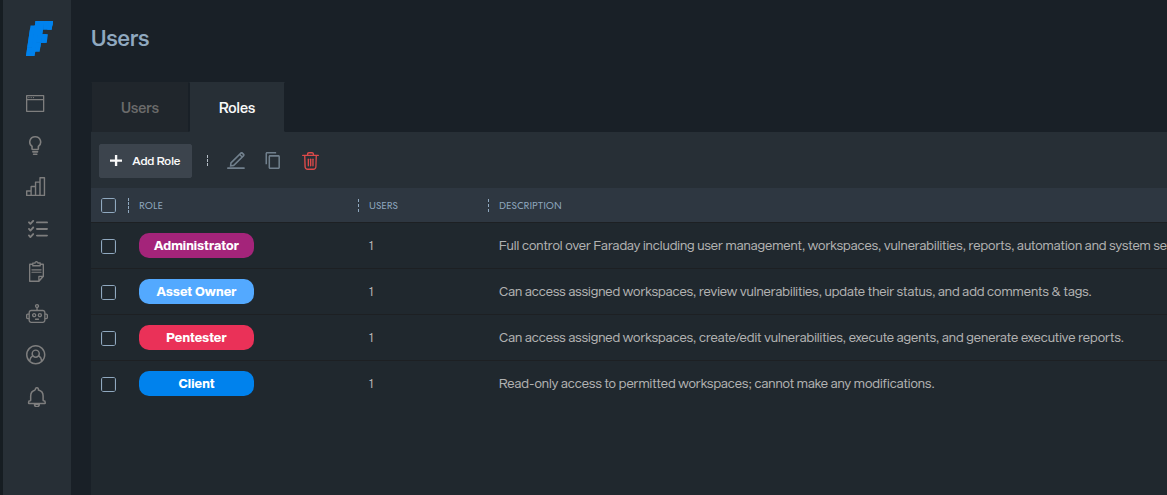
Custom roles can be created on the platform to define specific permissions and then assign new or existing users to these custom roles.
Only a user with the Administrator role can create a new custom role.
The new role can be created using a preexisting role as a template or from scratch. Any new custom role has the following considerations:
The new role name must be unique and can not be Administrator, Client, Asset Owner, or Pentester. The permission matrix of a custom role must be unique. If it matches the permission matrix of any other native or custom role, an error message would prevent the creation of the custom role.
The Permission Matrix
The permission matrix is divided into categories:
Vulnerabilities
Comments
Assets
Planner
Executive Reports
Pipelines
Integrations
Agents
Analytics
Credentials
There are some considerations related to the permission matrix: - Baseline permission: The matrix has a pre-configured baseline of minimum permissions required for the role to be functional. These baseline permissions are always enabled and cannot be turned off. - Uniqueness: The permission set must be different from any existing role. - Maximum Limit: The maximum set of permissions for a custom role is defined by the permission matrix of the Administrator role.
How to create a Custom Role from scratch 1. Navigate to Users > Roles Tab. 2. Click Add Role 3. Enter a unique name in the New User Role field. 4. (Optional) Describe the role. 5. Configure its permissions using the permission matrix toggles. 6. Click Save New Role. The role will now be available to assign to users.
How to create a Custom Role using a preexisting role as a template:
- Navigate to Users > Roles Tab.
- Select the role (native or custom) you want to use as a template.
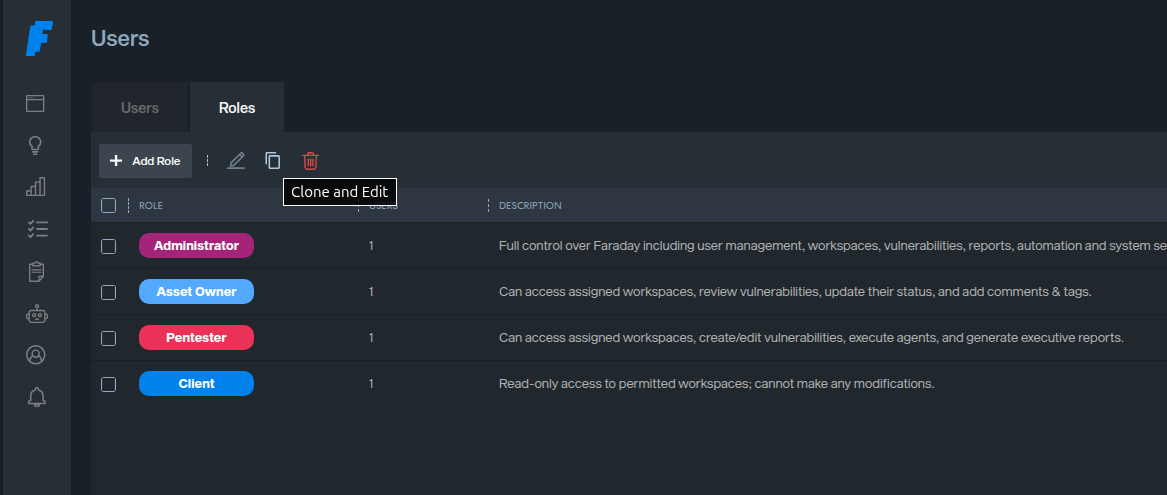
- Click on the “clone and edit” icon located in the toolbar.
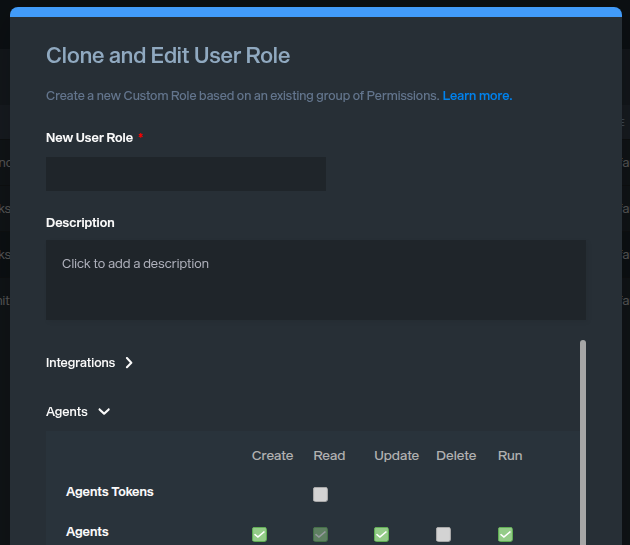
- Enter a unique name in the New User Role field.
- (Optional) Describe the role.
- Modify the pre-activated permissions as needed using the permission matrix.
- Click Save New Role. The role will now be available to assign to users.
Practical example, creating an “Operator” role: Objective: Create an "Operator" role based on the "Asset Owner" role, but with added permissions to create, update, and delete executive reports.
Step 1: Clone the Role: - Go to Users > Roles Tab. - Find the "Asset Owner" role and click the "Clone and Edit" icon.
Step 2: Configure the New Role: - New User Role: Enter "Operator". - Description: Enter "This role is based on Asset Owner and has full access to the executive reports feature." - Permissions: In the "Executive Reports" category, enable the Create, Update, and Delete permissions (in addition to the pre-enabled Read permission). - Click Save New Role.
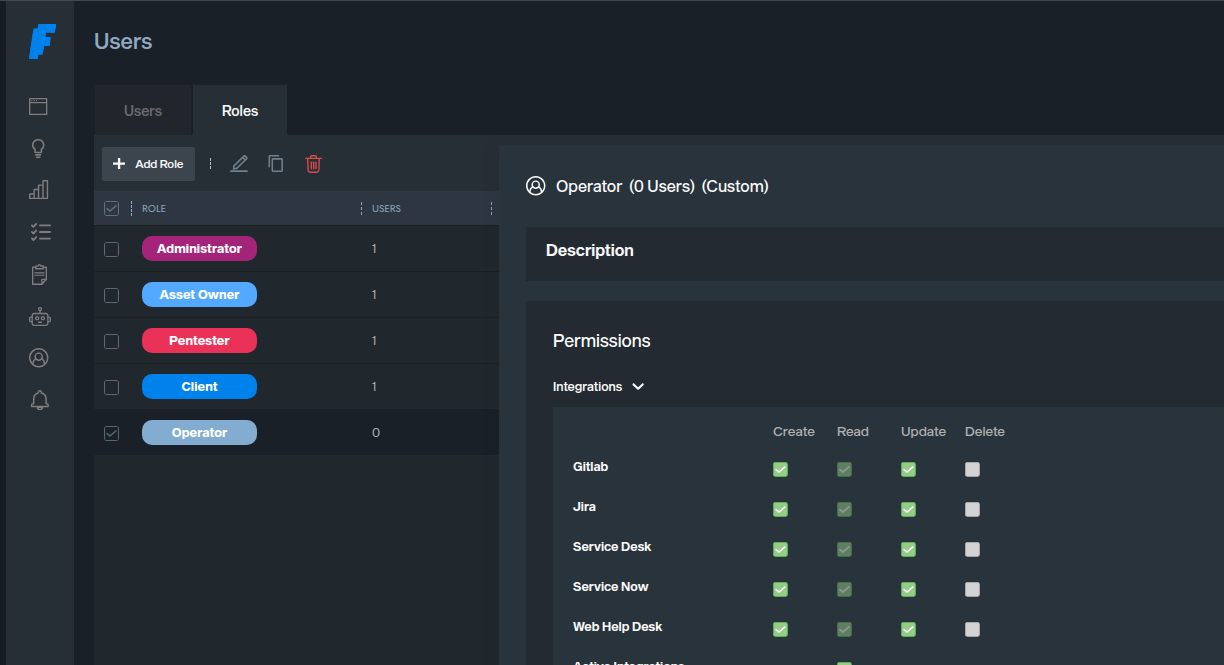
Step 3: View the results: - The "Operator" role will appear in the roles table. The "(0 Users)" indicator shows no users are assigned to it yet. - You can view and edit the role's details by clicking on its name.
Assigning the Role to Users: - Go to the Users tab. You can either edit an existing user and change their role to "Operator," or create a new user and assign them the "Operator" role directly.
LDAP/AD Integration
You can also enhance your User management inside Faraday with our LDAP/Active Directory integration. More information available here.